The Locker
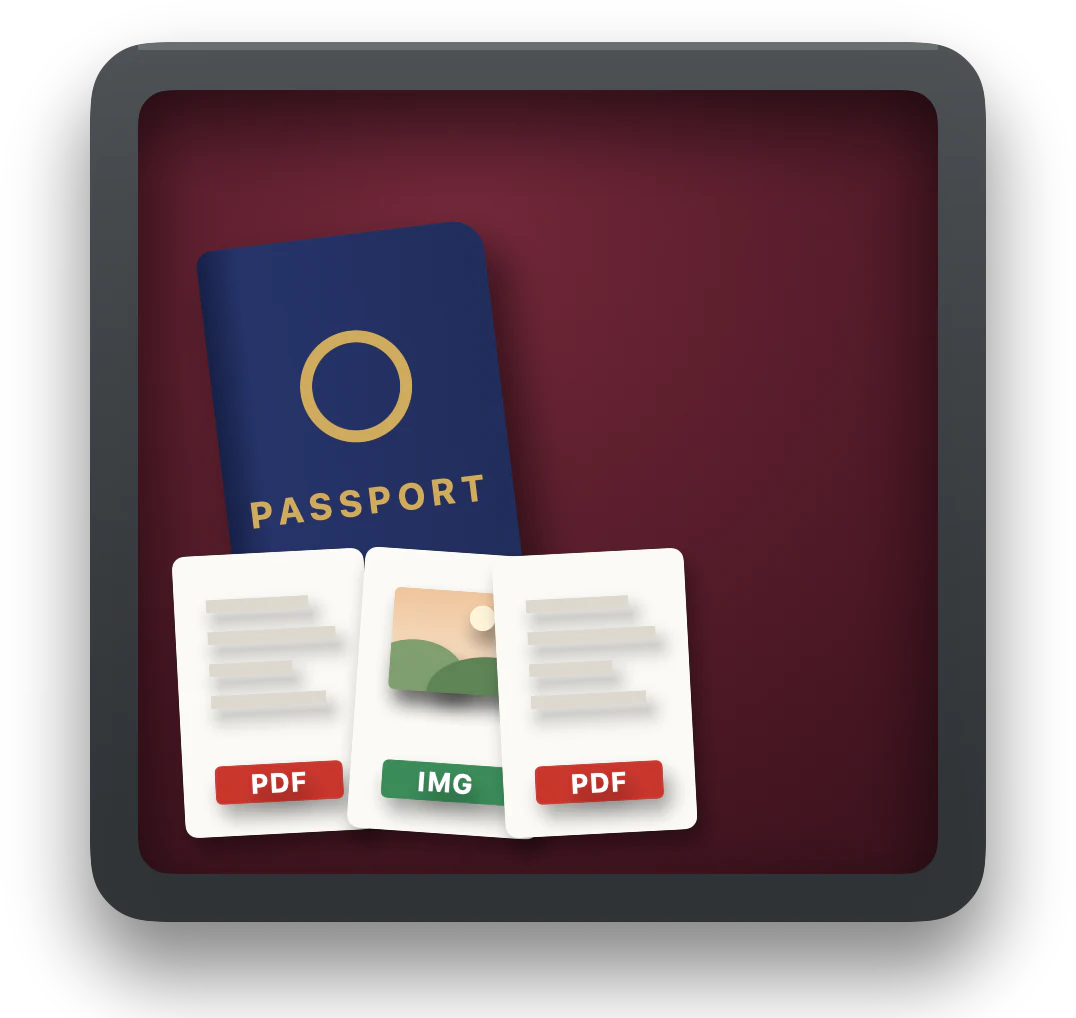
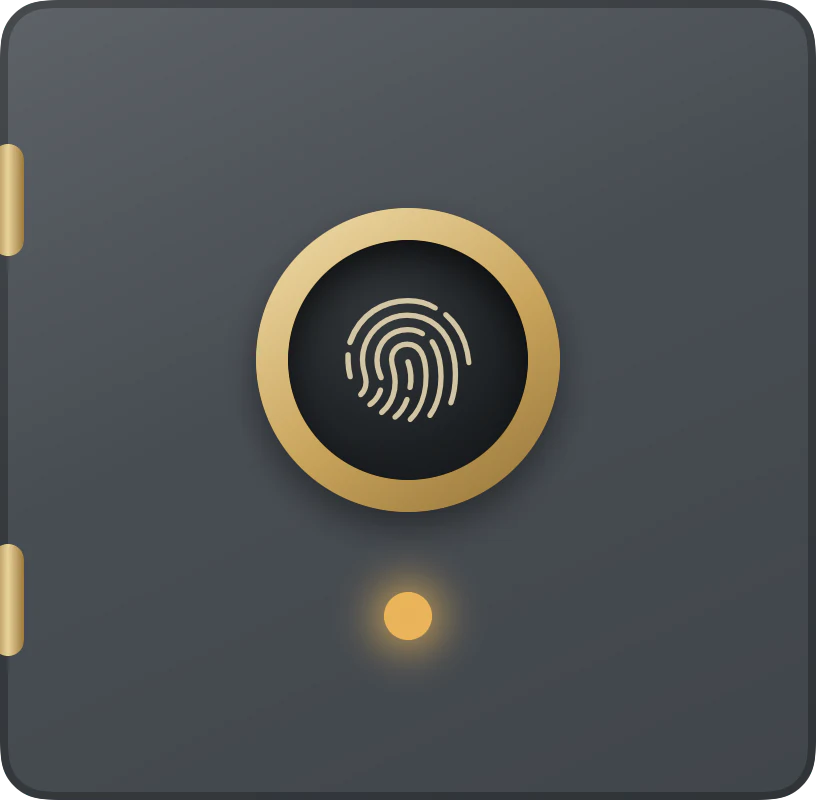
A small safe inside the almirah for passport and ID scans, certificates, and anything else you’d rather keep to yourself. It’s encrypted, its key is sealed by your Mac’s Secure Enclave, and it opens with your fingerprint.

How it works
- 1
Set it up
Click the locker. Almirah makes an encrypted disk image and shows you a recovery key, once. You type its last group back to show you’ve saved it.
- 2
Open it
Click the locker and approve with Touch ID, or your Mac password. Your Mac’s Secure Enclave checks it’s you before it unseals the key. It opens in about a second.
- 3
It locks itself
When the doors close, when you’ve left the keyboard alone for five minutes (you choose how long), when your Mac sleeps or locks, and when Almirah quits, even if it crashes.
The details
Encryption
An AES-256 encrypted disk image, made with the Mac’s own disk tools.
Sealed to this Mac
The key is sealed by the Secure Enclave, the chip behind Touch ID. It unseals only on this Mac, and only after Touch ID or your password. (Intel Macs without a T2 chip keep it in the Keychain.)
Your recovery key
Thirty random characters, like K7QF2-M9XRT-4HZPW-B3NCE-V8DLJ-Q2W6Y. It’s the only way in on another Mac. Copied, it stays off your other devices and leaves the clipboard after a minute.
Without Almirah
Double-click Locker.sparsebundle in ~/Library/Application Support/Almirah and enter your recovery key. macOS opens it like any disk image.
Taking a file out
You hand over a copy, so an upload keeps working after the locker locks. The copy is deleted after 10 minutes, or as soon as your Mac sleeps or locks.
Time Machine
Moving a file into the locker doesn’t reach into old backups. Earlier copies can still be in Time Machine.

Almirah for Mac
One-time purchase. No subscription.
Buy for $14.99Already bought it? Download
macOS 14 or later · Apple silicon and Intel